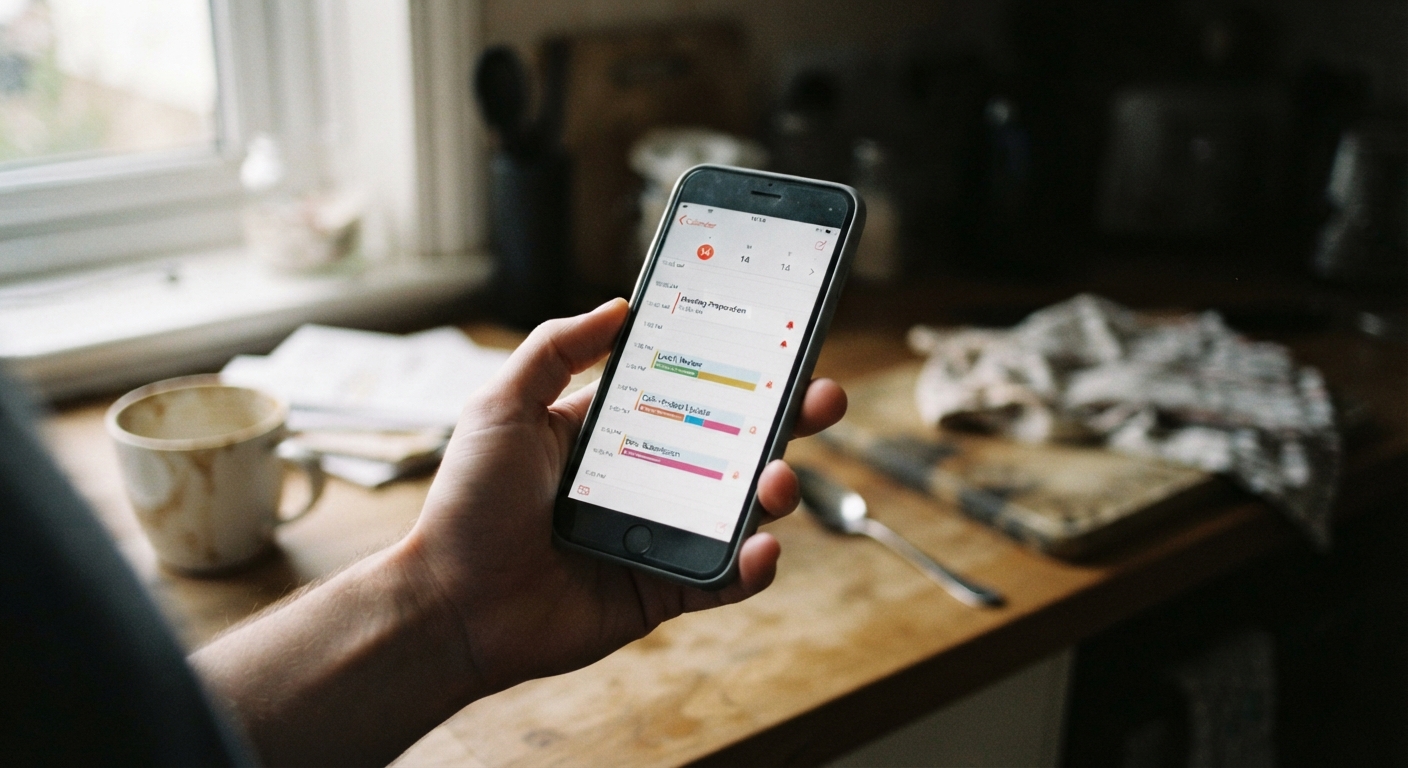
Every subscription that auto-renews is quietly betting on your forgetfulness. Streaming trials, software licenses, meal kits, meditation apps, warranty add-ons – they all share the same business model: sign up now, get charged automatically later, and hope you never get around to canceling. The single most reliable countermeasure isn’t willpower or a better memory. It’s a calendar system that does the remembering for you.
Why relying on memory alone fails most people
It’s not a discipline problem. It’s a design problem. A free trial or promotional rate is structured to be easy to start and easy to forget, because forgetting is what converts a trial into a paying customer. By the time the charge hits your bank account, weeks or months have passed since you signed up, and the specific date you needed to act on has long since blurred into “sometime last month, I think.”
There’s also a mismatch between how these dates matter and how our attention works. A renewal date isn’t urgent until the day it happens – and then it’s too late, because the charge has already gone through. Your brain doesn’t flag low-stakes, far-future events the way it flags a bill due tomorrow. Add in the fact that most households are juggling five, ten, sometimes fifteen recurring services with staggered billing cycles, and it becomes clear why “I’ll just remember” is not a system – it’s a hope.
The fix is to stop treating these dates as something to remember and start treating them as something to schedule, the same way you’d schedule a dentist appointment or a car registration renewal. Once a date lives on a calendar with an alert attached, it stops requiring any mental energy at all.
Setting a reminder several days before the actual deadline
The most common mistake people make when they do remember to set a reminder is setting it for the exact day the trial ends or the renewal charge hits. By then, your options are limited. If you need to cancel through a phone call, submit a written notice, or navigate a multi-step cancellation flow buried in account settings, you may not have time to finish before the charge processes.
A better approach is to set the reminder several days ahead of the actual deadline – enough time to actually act on it, not just notice it. For a monthly subscription, three to five days of lead time is usually enough. For an annual plan or a service with a cancellation window that requires notice in advance, a longer lead time gives you room to look up the cancellation process, gather your account information, and follow through even if the first attempt doesn’t work.
It helps to build in two reminders rather than one: an early “heads up” alert with enough runway to research and decide, and a second, closer alert as a final checkpoint in case the first one got buried in a busy week. The early one is your decision point – keep, downgrade, or cancel. The second one is your safety net.
When you set the reminder, put the actual information in the event itself rather than trusting yourself to remember it later. Note the service name, the approximate charge amount, the renewal date, and – if you know it – how to cancel (a link, a phone number, or a note that it requires calling during business hours). Future-you, glancing at a calendar notification between meetings, will thank present-you for not making them dig through old emails to reconstruct the details.
Using recurring versus one-time calendar entries correctly
Most calendar apps let you choose between a one-time event and a recurring one, and picking the wrong type is a common source of missed renewals. Getting this right matters more than people expect.
A one-time entry makes sense for a free trial that converts to a paid plan on a specific date, or for any situation where you plan to cancel and the relationship with that reminder is meant to end. Once you’ve acted on it, you can delete it – there’s no future occurrence to worry about.
A recurring entry makes more sense for a subscription you’ve decided to keep, but want to re-evaluate on a schedule – say, a reminder every three or six months to check whether you’re still using a service, whether the price has changed, or whether a cheaper tier would suit you just as well. This turns your calendar into a lightweight recurring audit system rather than just a cancellation trigger.
Where people get tripped up is setting a recurring reminder for a trial that they intend to cancel, and then forgetting to stop the recurrence after they’ve already acted. You cancel the trial, but the reminder keeps firing every month for a service you no longer have, until you eventually start ignoring it – and ignoring reminders is a habit that spreads. If you do end up canceling, take the extra ten seconds to delete or archive the reminder rather than letting it linger. A calendar cluttered with stale alerts trains you to swipe away notifications without reading them, which defeats the entire point of the system.
A useful habit is to label entries clearly by type – something like “TRIAL ENDS” versus “RENEWAL CHECK-IN” – so that when the reminder appears, you know at a glance whether it needs a decision or just a quick review.
Keeping the system updated as subscriptions change
A reminder system is only as good as its last update. Subscriptions change more often than people expect: prices increase, billing dates shift after a plan change, a service switches from monthly to annual billing, or a promotional rate expires and rolls into a higher one. If your calendar entries don’t get updated to reflect these changes, they’ll eventually point you toward the wrong date – or worse, give you false confidence that you’re tracking something you’re actually not.
A few habits keep the system honest over time:
- When you sign up for anything new that bills automatically, add the reminder in the same sitting – not “later,” which tends to mean “never.”
- When a confirmation email or receipt mentions a new price or a changed billing date, treat that as a trigger to open your calendar and adjust the corresponding entry right then.
- Set a recurring reminder – monthly or quarterly – to do a quick pass through your calendar entries against your actual bank or card statement, checking that the dates and amounts still line up.
- When you cancel a service, close the loop by deleting its reminder instead of leaving it to fire uselessly into the future.
None of this requires special software or a complicated setup – the calendar app already on your phone is enough. What makes the system work isn’t the tool, it’s the consistency: treating every new subscription as an entry that needs a reminder, and treating every change to that subscription as a reason to go back and update it. Once that becomes routine, trial-end dates and renewal windows stop being things you have to remember at all. They just show up, on time, with everything you need to make a quick decision.