

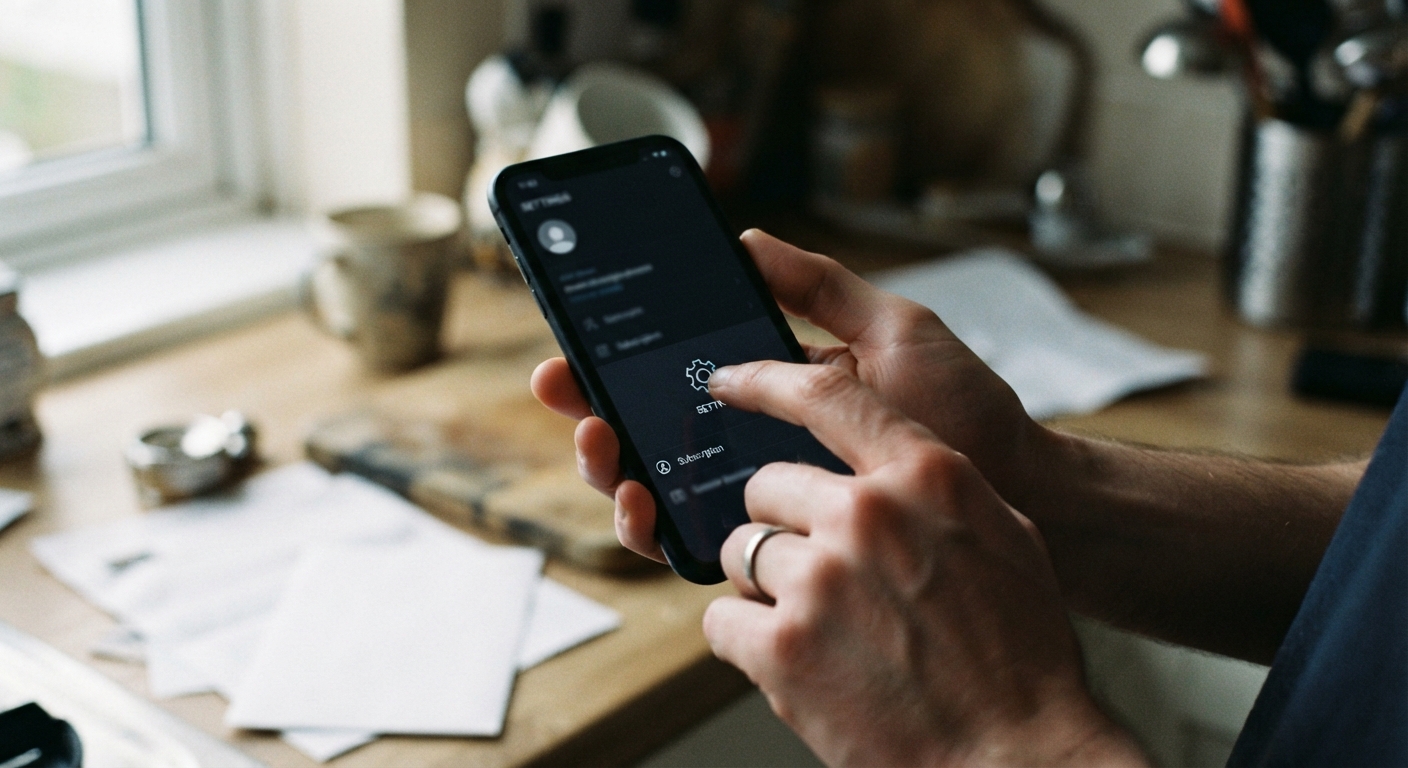
Why some subscriptions are actually billed by Apple or Google, not the company itself
When you sign up for a subscription inside an app on your phone, the company that made the app is often not the one charging your card. Apple and Google both require, or at least strongly encourage, apps to sell subscriptions through their in-app purchase systems. That means your money goes to Apple or Google first, and they take a cut before passing the rest along to the company. From your side, this shows up as a charge from “Apple” or “Google” on your bank or credit card statement, not from the streaming service, dating app, or fitness program you actually think you’re paying.
This matters enormously when you’re trying to cancel. If a company’s cancellation flow is billing you through Apple or Google, then no amount of clicking around on the company’s own website will ever cancel the charge. The company literally may not have the power to stop it, even if a support rep tells you they’ve “processed” your cancellation. The only party that can actually turn off the billing is whichever store processed the purchase. This is the root of a huge number of “I cancelled and got charged anyway” complaints. The person did cancel something, usually an account or a profile, but not the recurring payment itself.
The reverse is also true. Some apps let you subscribe on their website with a credit card directly, bypassing the app stores entirely, especially if you started the subscription on a desktop browser rather than inside the mobile app. In that case, the app store trick described below won’t show you anything, because there’s nothing there to cancel. Knowing which kind of subscription you have is the first step, and it takes about two minutes to check.
How to check whether a charge runs through the App Store or Play Store versus direct billing
The fastest way to check is to look at your bank or credit card statement. Charges billed through Apple typically appear with a descriptor that includes “Apple” or “App Store,” sometimes followed by a support phone number or a short code rather than the actual company name. Charges billed through Google Play usually show up as “Google” or “GOOGLE PLAY” followed by a code. If you see the company’s own name plainly on the statement, that’s a strong sign you’re dealing with direct billing, and the app store settings won’t help you.
If the statement descriptor is ambiguous, there’s a more reliable check. On an iPhone, open Settings, tap your name at the top, then tap Subscriptions. This screen lists every active and recent subscription billed through your Apple ID, regardless of which app it belongs to. If the subscription you’re trying to cancel is listed there, it’s an Apple-billed subscription. On an Android phone, open the Google Play Store app, tap your profile icon in the top right, then tap Payments & subscriptions, then Subscriptions. Any subscription billed through Google Play will appear on that list with its next billing date.
If you find the subscription in either list, you’re in luck, because from here the cancellation is entirely in your hands and doesn’t depend on the company cooperating at all. If it isn’t there, skip ahead to the section on what to do next, since you’re likely dealing with direct billing and a different set of steps.
Step-by-step: finding and cancelling a subscription in iPhone Settings and the Google Play app
On an iPhone or iPad, the path is short. Open the Settings app, tap your name at the very top of the screen, and select Subscriptions. You’ll see a list of every subscription tied to your Apple ID, active ones grouped separately from expired ones. Tap the subscription you want to end. On the next screen you’ll see details like the renewal date and price, and near the bottom there’s a button that says Cancel Subscription. If you don’t see that button, it usually means the subscription is already scheduled to cancel, or it’s a free trial that hasn’t converted to paid yet, in which case there may be a different option shown instead.
Tap Cancel Subscription and confirm when prompted. You’ll typically get a message confirming the date your access ends. Importantly, cancelling this way does not usually cut off access immediately. It stops future billing but lets you keep using the service until the current paid period runs out, which is normal and expected.
On an Android phone, open the Google Play Store app and tap the profile icon in the upper right corner. Tap Payments & subscriptions, then Subscriptions. Find the subscription in the list and tap it to open its details page. You’ll see a Cancel subscription button. Tap it, and Google will usually ask why you’re cancelling with a short survey, which you can skip or answer quickly, and then ask you to confirm. Once confirmed, you’ll see a note about when your access ends.
If you manage a family sharing group or have multiple Apple IDs or Google accounts on one device, double check you’re looking at the subscriptions tied to the account that actually made the purchase. It’s easy to check the wrong account and conclude a subscription “isn’t there” when it’s simply attached to a different login.
What to do if the subscription doesn’t show up in either store’s list
If you’ve checked both Settings on iPhone and the Play Store app on Android and the subscription is nowhere to be found, that’s useful information, not a dead end. It almost always means the subscription is billed directly by the company, through a card number they have on file, rather than through Apple or Google. In that case, the app store can’t help, because there’s nothing on their end to turn off.
At that point your options are the ones you’d use for any directly billed subscription: log into the account on the company’s website and look for account or billing settings, use their app’s own cancellation flow if one exists, or contact customer support directly and ask them to confirm in writing that the recurring charge has been cancelled and get a cancellation or confirmation number if they offer one. Save that confirmation. If the company continues to make cancellation difficult, you can also contact your card issuer about disputing future charges or ask them to block that specific merchant from charging your card going forward, which many banks and card apps allow you to do directly from the transaction details screen.
It’s also worth considering that some subscriptions started through an app but were later billed directly after a switch, or started on a website but were later migrated into app billing after an app update. If you’re not finding a match, it doesn’t hurt to search your email inbox for the original signup confirmation, which usually states plainly whether the charge runs through Apple, Google, or the company’s own payment processor.
Confirming the cancellation actually stopped future charges on your card statement
Cancelling inside Settings or the Play Store app should be reliable, but it’s worth verifying rather than just trusting the confirmation screen. The simplest check is to look at your Apple Subscriptions list or Google Play Subscriptions list again a day or two after cancelling. The subscription should now show as expired, cancelled, or no longer listed among active ones, often with a note about the date it ended or will end.
The more concrete check is your bank or card statement. Mark your calendar for the date the subscription was scheduled to end, and then check your statement in the days that follow to confirm no new charge from Apple, Google, or the company appeared. If a charge does show up after the cancellation date, it’s worth first re-checking the app store subscriptions list to see if the cancellation somehow didn’t take effect, which can happen if you cancelled a free trial incorrectly or cancelled the wrong item in a bundle. If the subscriptions list clearly shows the item as cancelled but you were still charged, that’s a case where contacting Apple or Google support directly, rather than the original company, tends to get faster results, since they control the billing and have records of exactly what was charged and when.
Keeping a simple record, a screenshot of the cancellation confirmation and the date, costs you nothing and can save a frustrating back-and-forth later if a charge slips through anyway.
